

In today’s global marketplace, online shopping is no longer limited by borders. Consumers from different countries can easily browse, compare, and purchase products from around the world, creating vast opportunities for e-commerce businesses. As international online shopping continues to grow, catering to a global audience has become more important than ever.
One major challenge that international shoppers face is dealing with different currencies. Prices displayed in unfamiliar currencies can confuse customers, increase hesitation, and even lead to abandoned carts. On the business side, handling multiple currencies without the right tools can complicate payments, create conversion issues, and affect profitability.
By addressing these currency differences and payment barriers, e-commerce businesses can provide a smoother, more trustworthy shopping experience, helping them attract and retain customers from across the globe.
What is a WooCommerce Currency Switcher Plugin?
A WooCommerce Currency Switcher plugin is a tool designed for online stores using WooCommerce that allows customers to view and pay for products in their preferred currency. Instead of being limited to a single currency, shoppers can switch between multiple currencies with just a click, making international purchases easier and more transparent.
At its core, the plugin automatically converts product prices based on current exchange rates or pre-set rates defined by the store owner. It can also update shipping costs, taxes, and checkout totals to reflect the chosen currency, providing a seamless shopping experience for global customers.
By implementing a currency switcher, e-commerce stores can increase trust, reduce cart abandonment, and attract customers from different countries without the friction of manual conversions
WooCommerce Currency Switcher: Features and Benefits
While WooCommerce offers some basic currency options, its built-in features are limited in fully supporting international shoppers. For a more powerful solution, the Multi Currency Switcher for WooCommerce by Aelia is a top choice. This plugin enables your store to display prices and accept payments in multiple currencies, providing customers with the flexibility to shop in their preferred currency.
Key Features
- Multi-currency display and payments: Show product prices and accept transactions in a wide range of currencies.
- Automatic exchange rate updates: Rates are refreshed automatically using trusted sources like Open Exchange Rates, OFX, or the Turkish Central Bank.
- Geolocation-based currency detection: Customers see prices in their local currency based on their location.
- Manual or automated pricing: Customize product prices per currency if needed, or let the plugin calculate rates automatically.
- Seamless integration with WooCommerce payment gateways: Works smoothly with popular payment methods.
- Order tracking by currency: Each order records the currency used, making it easier for store managers and customers to view payments.
Benefits
Using a robust currency switcher like Aelia’s plugin can increase conversions, as customers are more likely to complete purchases in their own currency. It also reduces credit card conversion fees, enhancing the shopping experience, and builds trust with international buyers by offering a transparent and localized checkout process.
Step-by-Step Guide to Installing and Setting Up the Aelia Currency Switcher Plugin
The Aelia Currency Switcher is a powerful tool for WooCommerce stores, allowing you to display product prices in multiple currencies, automatically detect a customer’s location, and process payments in their chosen currency. Follow this step-by-step guide to get it up and running on your store.
1. Install and Activate the Plugin
- Purchase the plugin from the Aelia website and download the installation .zip file.
- In your WordPress dashboard, go to Plugins > Add New > Upload Plugin.
- Upload the .zip file, click Install Now, and then Activate.
- Once activated, access the settings under WooCommerce > Currency Switcher.
Tip: If the settings link doesn’t appear, check Aelia’s knowledge base for a quick fix.
2. Configure Your Currency Options
Before setting up, decide which currencies you want to support. It’s best to focus on the most relevant ones to avoid cluttering your store or confusing customers.
- Navigate to WooCommerce > Currency Switcher.
- Add the currencies you want to enable.
- Click Save to update your list.
2.1 Review Currency Settings
After saving, you can fine-tune the details for each currency:
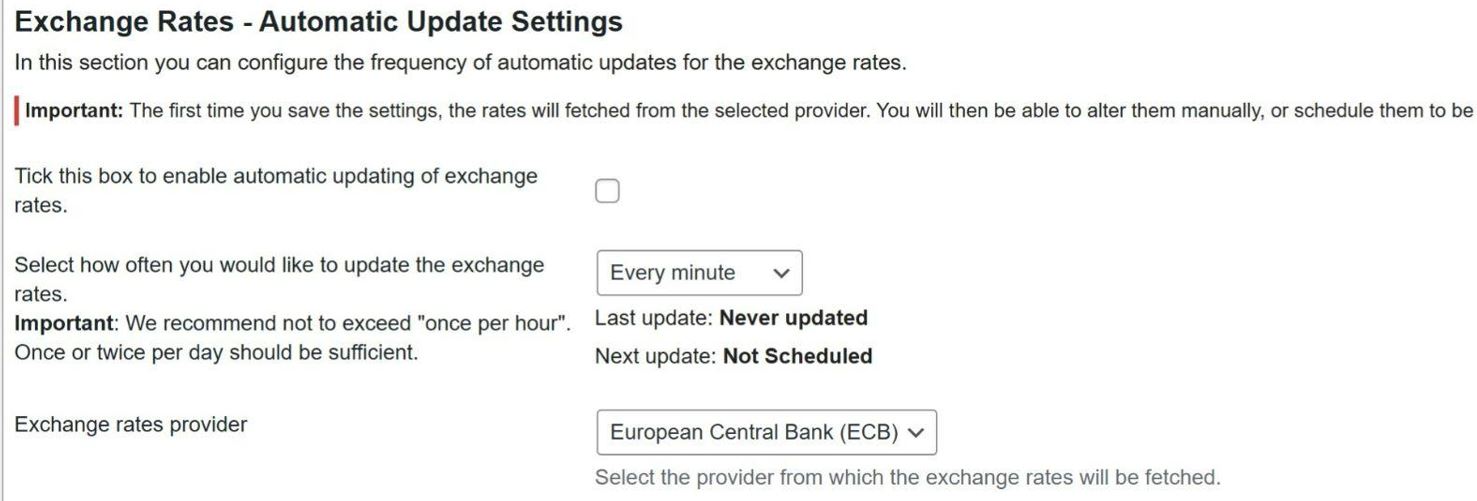
- Exchange Rate: Set the conversion rate from your base currency (automatic or manual).
- Automatic Updates: Enable automatic rate updates to keep prices accurate.
- Separators & Decimals: Customize number formatting and refresh frequency (e.g., daily).
- Currency Symbol & Position: Choose the display style and exchange rate provider, like Open Exchange Rates.
Tip: Automatic rates are recommended. Manual rates are possible but may affect accuracy if not updated regularly.
2.2 Enable Geolocation
The geolocation feature shows prices in the correct currency based on a visitor’s location:
- Open the Geolocation tab in the plugin settings.
- Tick Enable Geolocation.
- Set a default currency for visitors from unsupported countries (e.g., GBP or EUR).
Advanced users can assign specific currencies to groups of countries using filters.
2.3 Set Up Payment Gateways
To process orders in multiple currencies, ensure at least one payment gateway is enabled for each currency:
- Go to WooCommerce > Currency Switcher > Payment.
- Assign payment gateways (PayPal, Stripe, etc.) to each currency.
Tip: When adding new payment methods, revisit this section to ensure they’re linked to the correct currencies.
2.4 Choose How Customers Select Currency
Aelia offers flexible options for currency selection:
- Via URL: Use a URL parameter to switch currency.
- By Country: Automatically assign currency based on billing or shipping country.
- Currency Selector Widget: Let customers manually select currency via a dropdown or menu.
If you lock currency by country, hide the selector so customers cannot override it.
Benefits of Using a WooCommerce Currency Switcher for Store Owners
Expanding your e-commerce store to international markets doesn’t have to be complicated. With a WooCommerce currency switcher, store owners can unlock multiple advantages that directly impact growth, revenue, and operational efficiency.
1. Expand to New Markets Effortlessly
Selling to international customers becomes simple when prices are displayed in their local currency. You can reach global audiences without setting up separate stores or handling complex manual conversions.
2. Boost Revenue and Customer Retention
Allowing customers to shop in their preferred currency reduces friction at checkout, leading to higher conversion rates and repeat purchases. Customers feel more confident making purchases when they clearly see the price in their own currency.
3. Simplify Global Pricing Management
Managing multiple currencies can be time-consuming—but a currency switcher automates exchange rates and pricing updates, saving time and minimizing errors. You can focus on growing your business while the plugin handles currency calculations seamlessly.
By implementing a currency switcher, store owners can scale globally, increase sales, and streamline operations, all while providing a better experience for international customers.
