
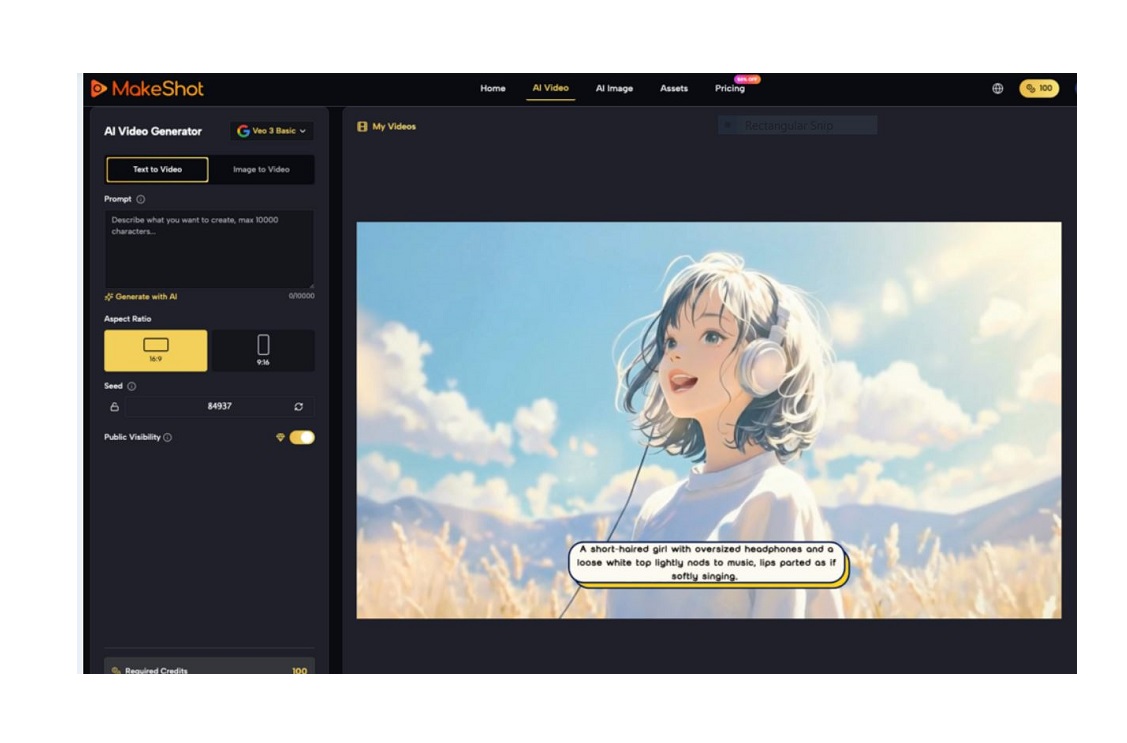
Here’s a grounded look at how beginners can realistically adopt AI video and image tools—without the hype. Using MakeShot as a case study (a unified studio that brings Veo 3, Sora 2, and Nano Banana into one place), we’ll focus on working through uncertainty, learning by iteration, and tightening your workflow over time. Think of this as a field guide for your first weeks with an AI Video Generator or AI Image Creator. Let’s unpack it step by step.
Getting Started Without the Panic
Early experiences with an AI Video Generator or AI Image Creator rarely feel magical. More often, the first days are messy: prompts don’t match what you imagined, features blur together, and a half-day evaporates for a 10-second clip. A platform like MakeShot reduces model-juggling, but simplicity doesn’t erase the learning curve. The real game is aligning your idea → prompt → references → generation → revision → assembly, and doing it repeatedly until it feels natural.
Below is a pragmatic onboarding path: survive first, improve second, optimize last.

Phase 1: Ship a Minimum Viable Clip or Image
In the beginning, the goal isn’t “gorgeous.” It’s “complete.” You’re building muscle memory with small, repeatable wins.
Pick One Narrow Task
- Define a single output: an 8–12 second product intro, or a set of three consistent e-commerce images.
- Lock your variables: fixed resolution, fixed duration, stable style baseline. Only tweak prompts for learning.
- Version your attempts: save prompts, seeds, and outputs so you can retrace your steps.
Choose Models by Strength, Not FOMO
- Video:
- Veo 3: Useful for a first pass with rhythm and sound. Its native audio generation helps beginners feel pacing and camera-to-audio alignment early.
- Sora 2: Great for cinematic grammar—movement, tone, and atmosphere. Use it to set your visual language.
- Images:
- Nano Banana Pro: Strong for hyper-real product textures and consistent character or brand elements. Start here when realism and detail matter.
Tip: Begin with one AI Video Generator or AI Image Creator at a time. Resist cross-model blending until you can consistently diagnose what’s “off.”
Prompting: Describe Shots and Composition, Not Just Adjectives
- Video:
- State the subject and action clearly: who, doing what, where, and how the camera moves.
- Block a three-beat structure: opener (2–3s mood), core (6–8s action), button (2s transition).
- Images:
- Prioritize composition and lighting: rule of thirds, eye-level vs. top-down, soft backlight vs. hard edges.
- Control variables: keep 3–5 core descriptors and change only one per iteration to learn its effect.
The aim is to teach yourself cause and effect. Shorter prompts with clear shot logic often outperform flowery prose.
Phase 2: Build a Friendly Relationship with “Good Enough”
Once your pipeline runs end-to-end, you’ll notice consistent gaps: pacing that fights the story, textures that feel plasticky, or character inconsistency. This is where trial-and-error becomes deliberate.
Common Early Gaps—and How to Tackle Them
- Unsteady pacing in video:
- Use Veo 3’s audio-backed drafts as a “tempo ruler.” If the soundscape tells you it’s rushed, shave beats; if it drags, condense transitions.
- Keep shots to 3–6 seconds until you prove a longer take works.
- Inconsistent characters or products in images:
- With Nano Banana Pro, feed up to four reference images to stabilize identity and style. Tighten angles and lighting first; then finesse clothing or props.
- Over-stylized results:
- Dial back creative modifiers. Start with composition + lighting + material qualities, then add one stylistic term at a time.
- Fine detail errors:
- Ask for higher sampling or a higher “detail” preset only after composition is locked. Otherwise you waste cycles polishing the wrong frame.
A Simple Comparison Loop
- Generate the same prompt in Sora 2 and Veo 3 (video), or in Nano Banana Pro and one alternate model (images).
- Put outputs side-by-side.
- Annotate what each did better: motion language vs. texture, color integrity vs. lighting realism.
- Pick the winner and iterate there. This keeps you learning from contrasts rather than chasing novelty.
Small, tracked experiments beat scattered attempts every time.
Phase 3: Move from Single Outputs to Repeatable Systems
You’ve shipped a few usable pieces. Now you’re ready to standardize and scale sensibly.
Template Your Process
- Shot or frame checklist:
- Video: opener, hero action, product close, transition, end tag.
- Image: context shot, hero angle, detail close-up.
- Prompt library:
- Maintain 3–5 “house styles” with locked composition and lighting. Swap themes, not structure.
- Reference packs:
- For recurring characters/products, maintain a curated folder: neutral front/side/back shots, plus one lifestyle angle.
When to Choose Sora 2 vs. Veo 3 vs. Nano Banana Pro
- Sora 2:
- Narrative arcs, cinematic motion, moody or atmospheric sequences.
- Veo 3:
- Faster ideation with synced sound. Use it for rhythm, quick storyboards, and drafts that need soundscapes out of the box.
- Nano Banana Pro:
- Hyper-real product renders and consistent brand visuals. Also the go-to for reference-driven image sets.
A unified workspace like MakeShot helps you compare these models in one place and manage an asset library without hopping subscriptions. The benefit isn’t “magic results,” it’s fewer context switches and clearer A/B tests.
A Beginner-Friendly Workflow You Can Reuse
Below is a compact flow that works well in MakeShot and similar platforms.
- Define the Outcome
- One sentence: “Create a 10-second opener showcasing a ceramic mug at sunrise” or “Three product images: hero, lifestyle, detail.”
- Choose Your Starting Model
- Video:
- Draft in Veo 3 when you want audio cues to inform pace.
- Draft in Sora 2 when you’re exploring cinematic motion or scene language.
- Image:
- Start in Nano Banana Pro for realistic texture and product accuracy.
- Write a Beat Sheet
- Video example (structure, not a script):
- Shot 1 (2s): Close-up, dew on mug, soft backlight, slow push-in.
- Shot 2 (6s): Hand lifts mug, steam rises, window bokeh, medium shot, gentle pan.
- Shot 3 (2s): Wide shot reveal, warm room tone, quiet city ambience.
- Image example:
- Hero: eye-level, 35mm feel, soft bounce light, neutral background.
- Lifestyle: kitchen counter, morning light, shallow depth of field.
- Detail: handle texture, glaze highlights, side lighting.
- Generate, Then Diagnose
- Tag outputs with prompt version and seed.
- Make one change per iteration (e.g., lighting angle) to observe impact.
- Stabilize with References
- For images, provide up to four references in Nano Banana Pro to lock identity or brand assets.
- For videos, reuse thumbnails or stills from previous takes to nudge continuity.
- Polish and Assemble
- Trim shots to beat your tempo target. If you drafted in Veo 3, let its native audio guide cut points.
- If Sora 2 gave you superior visuals, consider re-timing to match an audio bed later.
Where AI Changes the Effort Curve (And Where It Doesn’t)
- What speeds up:
- Exploratory storyboards and concept looks.
- Variant testing: angles, textures, color treatments.
- Quick “what if” drafts for stakeholder alignment.
- What stays hands-on:
- Editorial judgment: pacing, emphasis, and emotional beats.
- Brand fidelity: consistent colors, fonts, and product angles.
- Final assembly and QC: continuity, artifact cleanup, copy overlays.
Expect your hours to shift from logistics (shoot planning, reshoots) to curation and editing. Budgets tilt away from rentals and toward iteration time and post polish.

A Compact Model-Use Cheat Sheet
Here’s a quick reference for beginners comparing options inside a unified studio like MakeShot.
| Model | Best For | Starter Tip |
| Veo 3 | Drafts with sound, pace-aware ideation, quick cuts | Treat its native audio as your tempo guide; keep shots 3–6s |
| Sora 2 | Cinematic motion, moody storytelling, atmospheric scenes | Write a beat sheet first, then prompt per shot |
| Nano Banana Pro | Hyper-real images, product texture, reference consistency | Use up to four references to lock identity and angle |
Use this table to pick your starting point, then iterate with purpose.
Quality Control: A Simple Review Checklist
Before you share or publish, walk the output through a short QC pass.
- Video:
- Pacing: Does each shot convey one idea clearly? Any redundant beats?
- Continuity: Object positions and lighting consistent across cuts?
- Audio: If using Veo 3’s native audio, does ambience match visuals? Any glaring sync issues?
- Images:
- Composition: Is the subject framed as intended? Horizon and lines straight?
- Detail: Any artifacting on hands, text, or edges?
- Consistency: Colors, materials, and style matched across the set?
If two items fail, revise. If one is borderline, annotate it and proceed—momentum matters early on.
Bringing It All Together
Adopting an AI Video Generator or AI Image Creator is less about mastering a magic prompt and more about learning a dependable routine. Start narrow, choose models for their strengths (Sora 2 for cinematic arcs, Veo 3 for pace and native audio, Nano Banana Pro for hyper-real images), and iterate with only one change at a time. Use references to stabilize identity, keep a living prompt library, and favor beat sheets over long, adjective-heavy prompts.
The payoff isn’t instant transformation. It’s steady progress: clearer decisions, faster drafts, and more consistent outputs. With a platform that centralizes models like MakeShot, you’ll spend less time switching tools and more time refining your craft—one small, repeatable improvement at a time.
