

Setting up a WooCommerce AJAX product filter plugin can completely change how your online store feels to shoppers. It lets people see what they want without waiting for pages to reload again and again. If you’re running a WooCommerce store, you might already be wondering how to add a WooCommerce AJAX product filter plugin to your store?
To add the WooCommerce AJAX product filter plugin, log in to your WordPress admin dashboard. Go to Plugins and click “Add New.” Search for a plugin like “BeRocket Filters” or “Dynamic AJAX Product Filters.” Install and activate it. Next, go to the plugin settings. Choose your filter types and add them to your shop sidebar using widgets. Finally, save your changes to make them live.
If this topic interests you, you’re likely to learn more ways to make your store easier for shoppers. Keep reading. This article covers all the steps and details you need for proper setup.
How to Add a WooCommerce AJAX Product Filter Plugin to Your Store? Easy Steps to Follow
Adding product filters to your online shop can make a big difference for buyers. It helps people quickly find what they want without going through every item. This feature makes the shopping experience easier and less confusing. Follow the steps below to set it up on your site.
Step 1: Install the Plugin
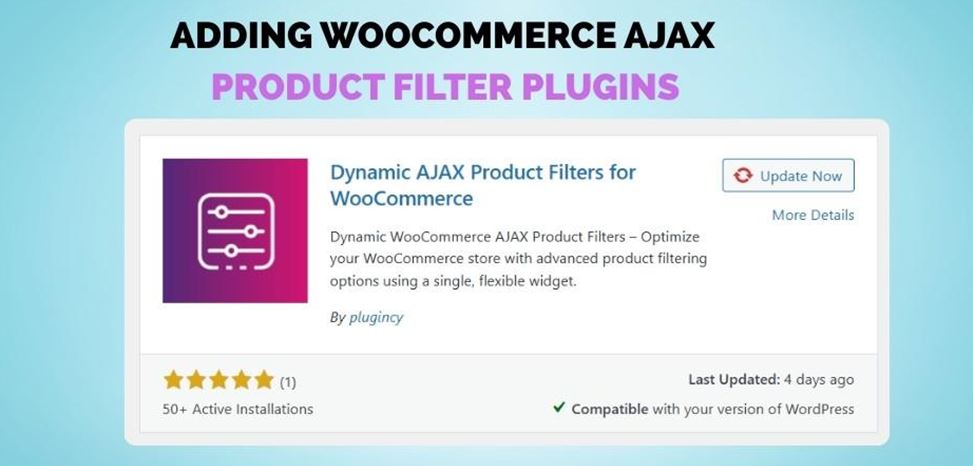
Start by logging into your WordPress admin dashboard. Go to the “Plugins” section and click on “Add New.” In the search bar, type the name of the filter plugin you want, like “Dynamic AJAX Product Filters” or “BeRocket Filters.” Once you find it, press “Install Now” and then “Activate.” Your plugin is now ready to use, and a new settings option will appear in your menu.
Step 2: Open Plugin Settings
After the plugin is activated, check your admin sidebar for a new section added by the plugin. Click on it to enter the filter settings page. This is where you’ll set up how your filters will work. Each plugin has its own layout, but they all offer options to choose what kind of filters you want. Look through the menus carefully and get familiar with the available choices.
Step 3: Select Filter Types
You can choose which filters you would like to display on your store within the settings section. You can set them up by price, category, tag, color, or size, depending on what you sell. Choose only the filters that are important to your customers. For example, if you do not have any size variation in your products, you can leave that out. You need to save your choices at the end to lock them in for future reference.
Step 4: Decide Filter Location
Place the filters in your website’s sidebar for easy access. Decide where you want them to show up. In order to add the filters to your shop page, go to “Appearance” > “Widgets” and select the area that suits your theme best. Drag the filter widget from the list into this space. As a result, buyers are able to use the filters without having to leave your shop page.
Step 5: Use WooCommerce Widget
Many shop owners prefer using a WooCommerce AJAX product filter to keep things fast and smooth. These filters update the product list right away without reloading the whole page. You’ll find the widget in the list after activating the plugin. Drag it into your shop sidebar and choose what filters you want to show. After saving, try a few filter options on the live page to test it.
Step 6: Rename the Labels
Filters should have clear names that shoppers understand at a glance. Go back to your plugin settings and find the label editing area. Change names like “Price” or “Color” to something more user-friendly if needed. Try to keep names short and helpful. Once done, save your updates to keep them in place. This makes your store look more organized and easier to shop.
Step 7: Check the Filter Work
Test everything on your website by going to the shop page and clicking on the filters. Ensure they show the right products. Check for loading errors. Also, verify that the results are correct. If you find any problems, go back to the plugin settings and fix them. It is important to test your products to ensure that your buyers won’t have any problems in the future.
That’s how you can easily add product filters to your WooCommerce store without coding. These steps help keep your site clean, fast, and easy to use. It also saves the time of your shoppers while finding what they want. Try setting it up today and make your store feel more professional.
Where to Find the WooCommerce AJAX Product Filter Plugin for Your Store?
It can be difficult to find the best product filter plugin if you are new to online retailers. With so many choices, it’s easy to get confused about where to begin. But some places are safe, easy to use, and trusted by many shop owners. If you’re trying to find a good WooCommerce AJAX product filter plugin for your store, keep reading for all the helpful options.
WooCommerce Plugin Store
One of the easiest ways to get the AJAX product filter is from the WooCommerce plugin store. This is the official store made just for WooCommerce users. You can search for the plugin by name and see different options. Many of them are free and easy to install. You don’t need to copy any code — just click and install from your WordPress dashboard. It also gives you updates and support to keep your plugin working well.
WordPress Plugin Directory
The WordPress plugin directory is another safe place to find this plugin. Just go to the “Plugins” section in your WordPress site and search for “AJAX filter.” You’ll see a list with ratings, update times, and how many people use each one. This helps you pick the best one. Most filters here are free and work well with basic online stores. Make sure to read a few reviews before choosing one.
Third-Party Plugin Sites
Some developers offer the AJAX product filter on their personal or company websites. These plugins may have extra tools or design choices. The websites usually explain clearly what the plugin does, sometimes with pictures or videos. If you decide to download from here, be sure the site is trusted. Always avoid downloading from unknown or unsafe websites. Trusted sites often offer help if something goes wrong.
Premium Plugin Marketplaces
Sites like CodeCanyon offer paid versions of AJAX product filters. These often come with better features, more style options, and support. You can check ratings and read reviews from other users before buying. They also give updates when something improves or changes. If your store needs more advanced tools, this might be worth it. Just make sure the plugin fits your store before you pay.
Finding the right WooCommerce AJAX product filter is not hard if you know where to look. You can choose from free, paid, or extra-featured versions based on what your store needs. Always check reviews and updates before picking one. Once you install the right plugin, your store will become much easier for customers to use.
What Filter Types Should You Enable for WooCommerce AJAX Product Filter?
Filters on your online store help everyone shop faster and easier. When people visit your site, they don’t want to scroll forever to find one item. A good filter shows them the exact products they need. Here, you’ll learn which filter types are best for a WooCommerce AJAX product filter.
Price Range
Many shoppers check the price first before looking at anything else. That’s why having a price range filter is a must in any store. It lets people pick how much they want to spend, using a slider or fixed options. This keeps them from wasting time on products they can’t afford. It also helps sellers show items that match different budgets. A clear and working price filter makes the shopping experience smoother.
Product Categories
Users can choose the group they wish to shop from by using category filters. This way, they don’t have to see everything all at once. Whether it’s clothes, electronics, or books, this keeps things tidy and simple. Shoppers don’t have to scroll through items they don’t need. It also helps store owners guide customers toward specific product sections. Just make sure your items are placed in the right categories so the filter works correctly.
Color Options
It is really helpful when people want to match a style or pick their favorite color. They can easily choose from options like black, blue, or red without going through every product. This is especially helpful for clothing, accessories, or home items. A good color filter should be easy to use and show clear color choices. It makes the whole shopping process faster and more fun.
Size Selection
For stores that sell clothes, shoes, or other fit-based items, size filters are super important. They stop shoppers from wasting time on items that don’t come in their size. If someone only wears size M, they should be able to see just those items in one click. This saves time and reduces returns. Keeping your size options updated helps avoid confusion and makes things easier for everyone.
Rating Filter
Some people like to shop based on what others say, and that’s where rating filters are helpful. By showing top-rated products first, you help shoppers find trusted items quicker. They don’t have to read through every review because the stars give a quick idea. This builds trust and can even enhance sales of your best products. Using rating filters also shows that you care about what customers think.
Filters help make your WooCommerce store more useful and less stressful to shop. By picking the right ones, your visitors can quickly find what they need. You don’t have to use every filter, just the ones that fit your store best. Keep them updated so they always work the way they should.
Tips to Test WooCommerce AJAX Product Filter Plugin Performance
If your online store uses filters, you’ll want them to work fast and without any bugs. A slow or broken filter can annoy your visitors. Testing the WooCommerce AJAX product filter plugin helps make sure everything runs well. Let’s go over some useful tips that can help you test it properly.
- Check Page Speed: Try using the filter on your store and see if the page loads quickly without any delay or lag during the process.
- Use Different Devices: Test the filter on phones, tablets, and computers to make sure it works properly on all screen sizes and device types.
- Try Multiple Filters: Click more than one filter at a time to see if the plugin handles it smoothly without freezing or showing the wrong results.
- Clear Cache Often: Always clear your browser and plugin cache before testing again, so you can see the real-time changes you’ve made.
- Test Logged-In Users: Use the plugin while logged in as a customer to check if the filter still works the same for different user roles.
- Switch Themes: Change your theme for a few minutes and see if the plugin still works, since some themes may not support all plugin features.
- Watch for Errors: Look for things like broken buttons or filters not showing the right results, and note them so you can fix them later.
- Check on Slow Internet: Try testing the filter using a slower internet connection to see how it performs when the speed is not strong.
- Use Demo Products: Add demo items with different prices, colors, and sizes to see if each filter type is working correctly with them.
- Check Plugin Conflicts: Turn off other plugins one by one while testing, just to make sure no other plugin is stopping the filter from working well.
Testing your WooCommerce AJAX product filter plugin doesn’t take much time, but it really helps. These small checks can save you from bigger problems later. A smooth filter means happy shoppers and better results. So take a little time to test things well.
Bottom Line
Adding a filter plugin may sound tricky at first, but the steps are quite simple when followed in order. You now clearly understand the process. It goes from installing the plugin to testing the filters. So if you ever wondered how to add a WooCommerce AJAX product filter plugin to your store, this guide just gave you the full answer in a simple way.
When you look at filters for your store, make sure they work well and fit your customers’ needs. Try different settings, use demo products, and keep testing things out. With the right setup, your shop will run better and feel more organized. Good luck setting up your store’s filter system!
