
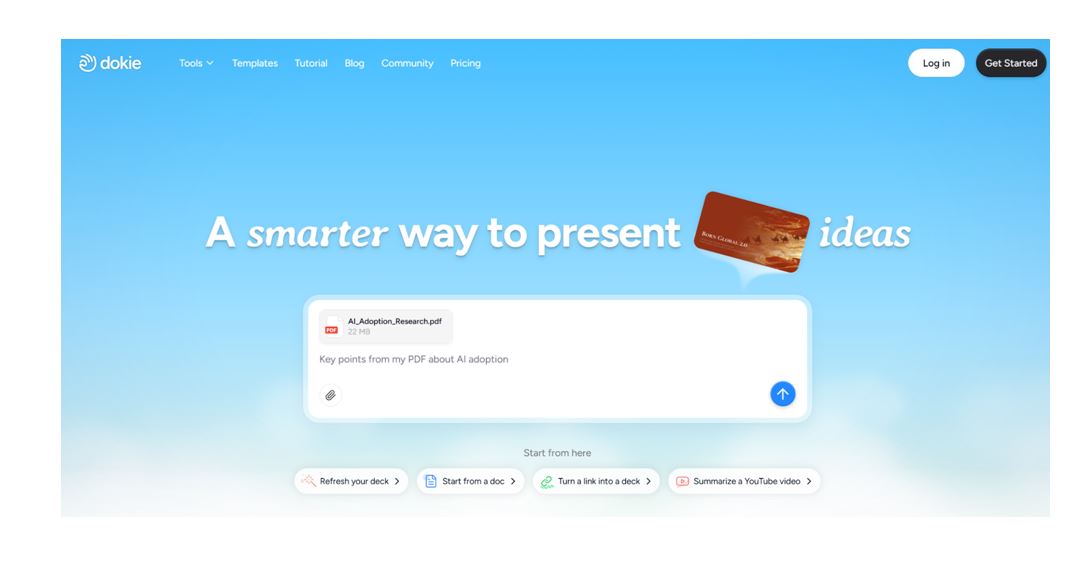
What Is Dokie AI?
Dokie AI is an AI slide creator that helps users create editable slide decks from ideas, notes, outlines, documents, and research materials.
Instead of starting from a blank PowerPoint file, you can use Dokie AI to generate a structured presentation draft. This makes it useful for business users, students, teachers, marketers, founders, consultants, and anyone who regularly needs to turn information into clear slides.
Dokie AI can be used for:
Business reports
Work presentations
Classroom slides
Teaching materials
Student projects
Research presentations
Portfolio decks
Interview decks
Training slides
Project updates
Marketing and sales decks
The main value of Dokie AI is not just slide generation. It helps organize information into a presentation format so users can communicate ideas more clearly.
Dokie AI Review: Who Is It Best For?
Dokie AI is best for users who already have something to say but need help turning it into a clean, structured presentation.
It is especially useful for professionals and students who often work with rough materials, such as meeting notes, research outlines, reports, documents, or topic ideas.
Best for business users
Dokie AI can help business users create reports, strategy decks, team updates, project summaries, client presentations, and training materials.
For example, a marketing manager can turn campaign notes into a weekly report deck. A founder can turn a product idea into a pitch deck. A team lead can turn meeting notes into an internal update presentation.
Best for students
Students can use Dokie AI to create class presentations, research decks, project summaries, and portfolio slides.
Instead of spending too much time formatting slides manually, students can focus more on research quality, argument structure, and presentation delivery.
Best for teachers
Teachers can use Dokie AI to create classroom slides, lesson materials, assignment guides, lecture decks, and teaching resources.
This is helpful when teachers need to explain topics visually, organize learning content, or create repeatable teaching materials.
Best for professionals building portfolios or interview decks
Dokie AI can also support personal career presentations, such as work portfolios, case study decks, interview presentations, and professional profile slides.
This can be useful for job seekers, designers, marketers, consultants, product managers, and freelancers who need to present their experience clearly.
Why Free AI PPT Tools Matter
Free AI PPT tools are useful because many users do not need a complex design platform every time they create a presentation.
Sometimes, you only need to convert content into slides, summarize an outline, generate a basic deck structure, or create a first draft quickly.
Free AI PPT tools can help with:
Reducing blank-page pressure
Structuring messy notes
Converting documents into slide-ready content
Saving time on repetitive formatting
Creating a starting point for presentations
Testing presentation ideas before committing more time
Improving productivity for students, teachers, and business teams
The key is to treat AI-generated slides as a starting point. You should still review the content, adjust the examples, refine the layout, and make sure the final deck matches your audience.
How Dokie AI Accelerates Your AI Presentation Maker Workflow
A strong AI presentation maker workflow usually includes five steps:
Collect information
Organize the message
Create the slide structure
Improve the design
Edit and present
Dokie AI helps speed up the middle part of this process, where many people lose the most time. It can turn raw materials into a structured presentation draft, giving you something clear to review and refine.
1. Turn ideas into slide outlines
If you only have a topic or rough idea, Dokie AI can help create a presentation structure.
For example, instead of manually deciding each slide title, you can start with a topic like “market research methods” or “quarterly marketing report” and generate a logical outline.
This is helpful when you know the subject but are not sure how to organize it.
2. Convert notes into presentation drafts
Many presentations begin with messy notes. These may come from meetings, brainstorming sessions, research documents, or copied text from multiple sources.
Dokie AI can help transform those notes into a cleaner slide format, making it easier to identify the main points and supporting details.
3. Create business-ready decks faster
Business presentations need structure. They usually need a clear opening, supporting evidence, key findings, and practical next steps.
Dokie AI is useful for creating business-ready decks such as:
Weekly reports
Monthly summaries
Campaign reviews
Product updates
Sales presentations
Client proposals
Training decks
Team planning presentations
The goal is to help users move from scattered information to a more organized deck.
4. Support education-ready presentations
For education, slides need to be clear, logical, and easy to follow. Dokie AI can help teachers and students organize topics into sections, explanations, examples, and summaries.
This can be useful for:
Classroom lectures
Student projects
Research presentations
Assignment guides
Teaching resources
Study materials
Group presentations
By turning educational content into slides, Dokie AI can help make complex topics easier to explain.
5. Make editing easier after generation
A good AI PPT generator should not lock users into a rigid format. Presentations often need editing after generation.
Dokie AI is helpful because it focuses on creating structured, editable slide decks. This allows users to refine the content, adjust the messaging, and improve the final presentation before sharing or presenting.
Free AI PPT Tools You Can Use in Dokie AI
Dokie AI includes free AI PPT tools that support different content-to-presentation workflows. These tools are useful when you already have source material and want to turn it into slides more efficiently.
Text to PPT
Text to PPT helps you convert plain text into a presentation draft.
This is useful when you have an article, outline, script, meeting note, or long explanation that needs to become slides.
Best for:
Blog summaries
Lesson content
Meeting notes
Speech drafts
Training materials
Simple project explanations
Word to PPT
Word to PPT helps turn document-based content into presentation slides.
This is useful for reports, proposals, research papers, lesson plans, and business documents that need to be presented visually.
Best for:
Business reports
Research documents
Assignment drafts
Internal documents
Proposal content
Teaching materials
PDF to PPT
PDF to PPT helps convert PDF-based information into a slide format.
This is useful when you need to present a report, white paper, research material, or formal document to an audience.
Best for:
Research reports
Market reports
Case studies
Academic papers
Business documents
Training manuals
Excel to PPT
Excel to PPT is useful when your presentation depends on data.
Instead of manually copying tables or summarizing spreadsheet content, this tool can help you turn spreadsheet-based information into a clearer presentation format.
Best for:
Sales reports
Marketing performance updates
Financial summaries
Operational reports
Survey results
Data analysis decks
JPG to PPT
JPG to PPT helps users turn image-based content into presentation slides.
This can be useful when you have screenshots, visual references, scanned materials, or design assets that need to be included in a deck.
Best for:
Screenshot-based presentations
Visual reports
Image collections
Creative references
Portfolio materials
PNG to PPT
PNG to PPT works similarly for PNG images, which are common in design files, screenshots, diagrams, charts, and transparent-background visuals.
Best for:
Design presentations
Product screenshots
UI examples
Diagram-based slides
Visual teaching materials
HTML to PPT
HTML to PPT is useful for turning web-based or structured HTML content into slide materials.
This can support users who work with web pages, landing pages, online reports, or structured digital content.
Best for:
Web content summaries
Landing page reviews
Online research
Product page presentations
Marketing audits
Pros and Cons of Dokie AI
Pros
Dokie AI is practical for users who want to create presentations faster without starting from scratch.
It supports a wide range of presentation use cases, from business reports to classroom slides. It is especially helpful when users have existing notes, documents, or research that need to be organized into a deck.
Another advantage is its focus on editable slide decks. This matters because most real presentations require revision before they are ready to share.
Cons
Like any AI presentation maker, Dokie AI should not be treated as a final-answer machine.
Users still need to review the content, check accuracy, adjust the tone, and refine the final slides. For highly specialized topics, the user may need to add expert insight, accurate data, or company-specific information.
Also, AI-generated design should always be reviewed based on the presentation context. A classroom deck, investor deck, and executive report should not all look or sound the same.
Dokie AI vs. Traditional PowerPoint Workflow
Traditional PowerPoint workflows often start with a blank slide. You need to decide the structure, write the content, design each slide, arrange visuals, and polish the layout manually.
This can work well for experienced presentation designers, but it is time-consuming for most users.
Dokie AI changes the starting point. Instead of beginning with a blank slide, you can begin with your source material. The AI helps create the first structure, which you can then edit and improve.
Traditional workflow:
Start with a blank file
Create slide structure manually
Copy content into slides
Design layouts from scratch
Edit and polish
Dokie AI workflow:
Start with notes, documents, or ideas
Generate a structured slide draft
Review and refine the message
Edit the slides
Export or present
This makes Dokie AI especially useful when speed and structure matter.
Dokie AI vs. Other AI Presentation Makers
Many AI presentation makers focus heavily on visual design or quick generation. That can be useful, but it does not always solve the main presentation problem: turning information into a clear story.
Dokie AI is useful because it focuses on transforming content into structured presentations. This makes it a strong option for users who care about clarity, workflow, and practical slide use.
For example:
If you need a modern web-style deck, Gamma may be a good fit.
If you need template-heavy design, Canva may be useful.
If you need strong design rules, Beautiful.ai may help.
If you need to turn documents, notes, and research into editable presentation decks, Dokie AI is worth considering.
The right choice depends on your workflow. If your biggest problem is organizing content into slides, Dokie AI directly addresses that need.
Common Use Cases for Dokie AI
Business reports
Dokie AI can help turn business updates into clear report decks. This is useful for weekly summaries, monthly reports, campaign reviews, and executive updates.
Marketing presentations
Marketers can use Dokie AI to create campaign reports, content plans, SEO summaries, audience research decks, and social media strategy presentations.
Sales decks
Sales teams can use Dokie AI to organize product benefits, customer pain points, case studies, pricing explanations, and proposal content into presentation format.
Classroom slides
Teachers can use Dokie AI to create lecture slides, lesson plans, assignment explanations, and visual teaching resources.
Student projects
Students can use Dokie AI to structure research presentations, group projects, class reports, and portfolio decks.
Research presentations
Researchers can use Dokie AI to turn findings, literature notes, and study summaries into slides for academic or professional audiences.
Training materials
Teams can use Dokie AI to create onboarding decks, internal training slides, process guides, and workshop materials.
Tips for Getting Better Results with Dokie AI
Start with clear source material
The better your input, the better the output. Provide clear notes, organized documents, or a specific topic.
Instead of writing “make a marketing deck,” give more context, such as “create a marketing performance report for a SaaS product, including traffic, conversion, paid ads, SEO, and next steps.”
Define the audience
A presentation for executives should be concise and outcome-focused. A classroom deck should explain concepts step by step. A student project may need more background and examples.
Tell the AI who the presentation is for.
Add your goal
A deck can inform, persuade, teach, report, or sell. The goal affects the structure.
For example, a sales deck should focus on pain points and benefits. A research deck should focus on methodology, findings, and conclusions.
Review every slide
AI can speed up the first draft, but human review is still essential. Check the logic, facts, tone, and slide flow.
Remove unnecessary text
Most presentations work better with concise slides. Cut long paragraphs and keep each slide focused on one clear message.
Customize examples
Generic examples are less effective. Add your company context, classroom topic, project details, or audience-specific examples.
Use Dokie AI to Present Your Ideas Clearly
Dokie AI helps users turn information into clear presentations, whether the starting point is a simple idea, a long document, a research outline, or a set of messy notes.
For business users, Dokie AI can help create reports, strategy decks, team updates, training slides, sales materials, and client presentations. It helps organize information so the audience can follow the message more easily.
For students and teachers, Dokie AI can help create classroom slides, assignment guides, research presentations, student projects, and teaching resources. It can make learning materials easier to structure and present.
The main benefit is clarity. Dokie AI does not just help you make slides faster. It helps you turn your ideas into a presentation that is easier to understand, edit, and deliver.
FAQs About Dokie AI
What is Dokie AI?
Dokie AI is an AI presentation maker that helps users turn ideas, notes, documents, outlines, and research into structured, editable slide decks.
Is Dokie AI an AI PPT generator?
Yes. Dokie AI works as an AI PPT generator and AI slides generator for creating business-ready and education-ready presentations.
What can I create with Dokie AI?
You can create business reports, classroom slides, teaching materials, student projects, portfolio decks, interview presentations, training slides, research presentations, and work decks.
Are Dokie AI’s free AI PPT tools useful for business presentations?
Yes. Dokie AI’s free AI PPT tools can help business users turn text, documents, PDFs, spreadsheets, images, and structured content into presentation materials.
Can students use Dokie AI?
Yes. Students can use Dokie AI for class presentations, research decks, group projects, portfolio slides, and assignment presentations.
Can teachers use Dokie AI?
Yes. Teachers can use Dokie AI to create classroom slides, lecture materials, lesson resources, assignment guides, and teaching presentations.
Is Dokie AI better than making slides manually?
Dokie AI is faster for creating a first draft and organizing content. Manual editing is still important for polishing the final deck, adding personal insight, and making sure the presentation fits the audience.
Conclusion
Dokie AI is a practical AI presentation maker for users who want to create structured slide decks from ideas, notes, documents, and research.
Its free AI PPT tools are especially useful for speeding up content-to-presentation workflows. Whether you are creating a business report, classroom deck, student project, training material, or research presentation, Dokie AI can help you move from raw content to editable slides faster.
The best way to use Dokie AI is to treat it as a presentation workflow assistant. Start with clear source material, generate a structured draft, review the message, refine the slides, and adapt the final deck to your audience.
Read Also:
Deep AI Review 2026: Is It Safe? Best Alternatives?
